How to Set Mobile Wallpaper
A simple guide to help you set stunning wallpapers on your iPhone or Android device.
iPhone (iOS)
Follow these steps to set wallpaper on your iPhone running iOS 16 or later.
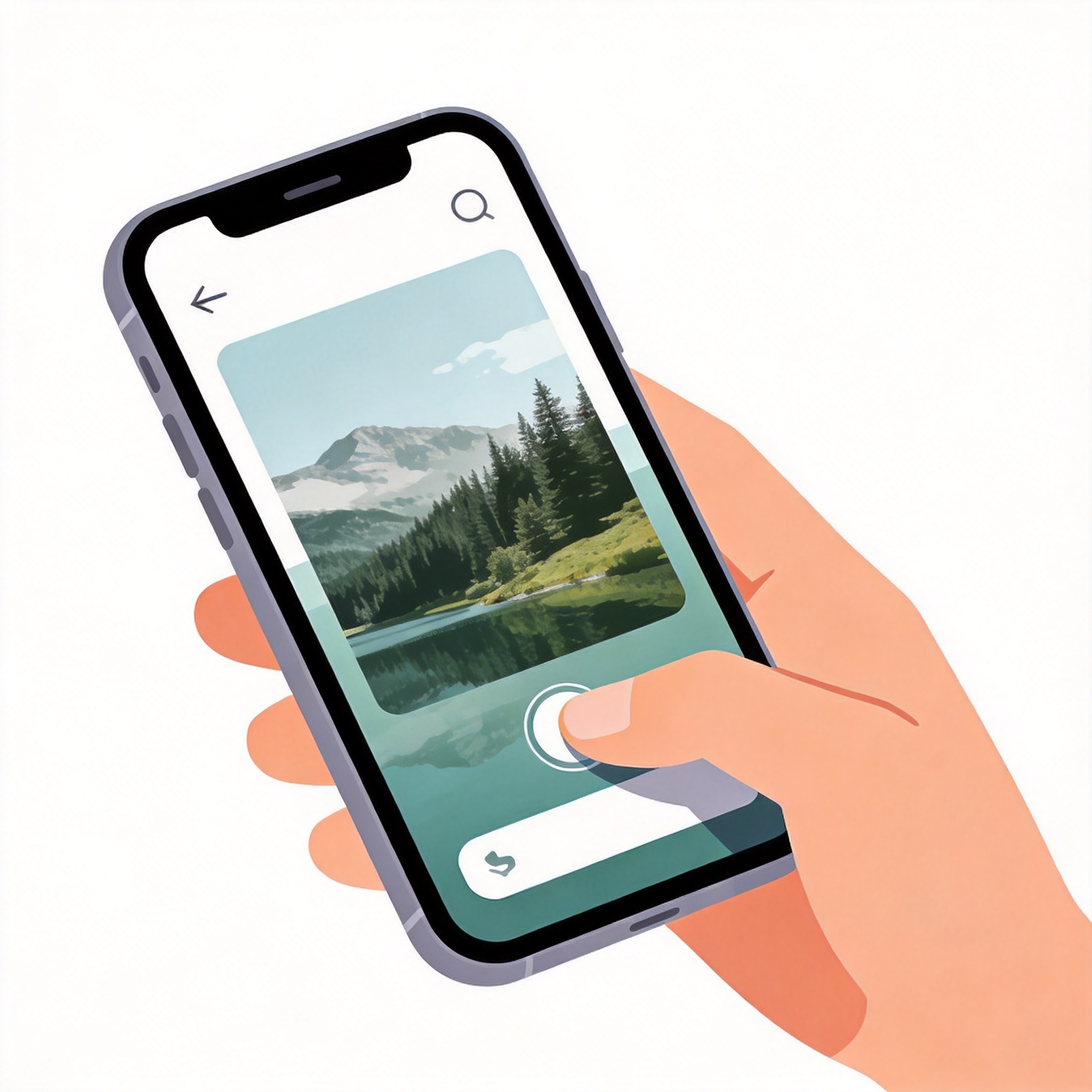
Save the Wallpaper
Press and hold on the wallpaper image, then tap "Save Image" to save it to your Photos.
Open Settings
Go to your iPhone Settings app and scroll down to find "Wallpaper".
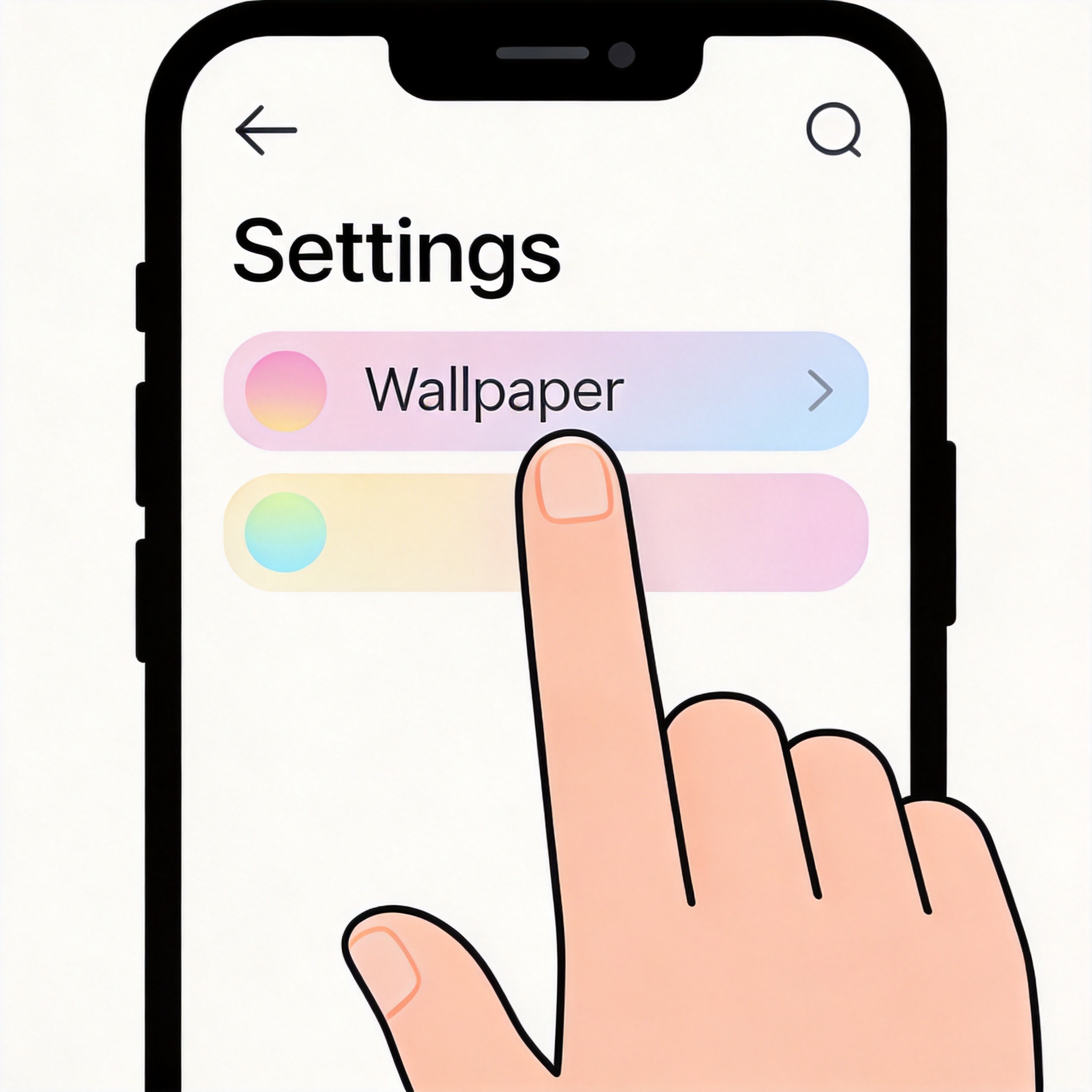
Add New Wallpaper
Tap "Add New Wallpaper" at the top of the screen, then choose "Photo Library".
Select Your Photo
Choose the wallpaper you just saved from your Photo Library.
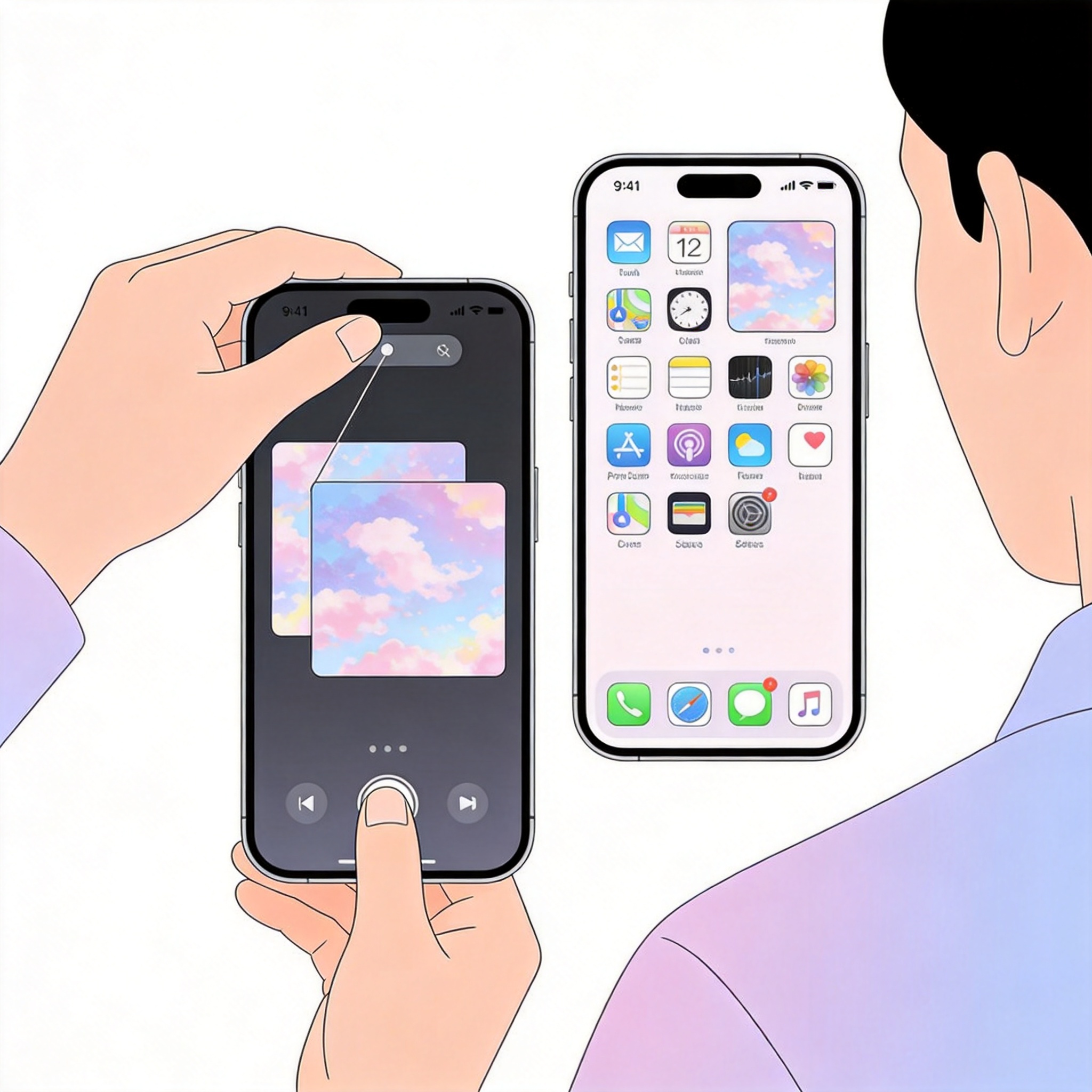
Adjust and Set
Move and scale the image. Choose "Lock Screen", "Home Screen", or both. Tap "Add" to confirm.
Android
Steps may vary slightly depending on your device manufacturer.
Save the Wallpaper
Long-press on the wallpaper and select "Set as wallpaper" or "Save image" to download first.
Long Press Home Screen
Long-press on an empty area of your home screen and tap "Wallpapers" or "Home screen settings".
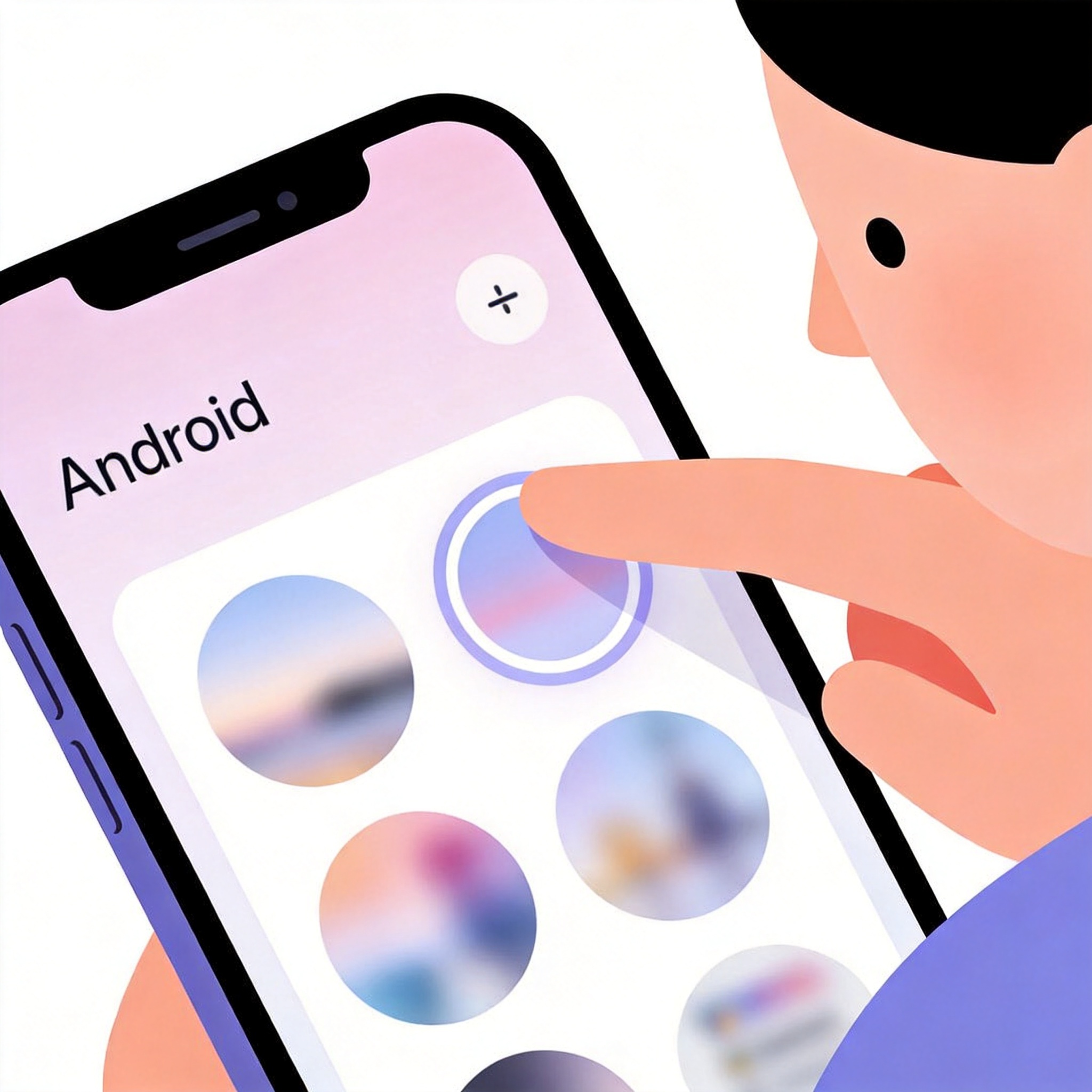
Choose Your Source
Select "Photos", "Gallery", or "Wallpapers" depending on where you saved the image.
Select and Apply
Choose your wallpaper image. You can preview how it looks on Lock Screen and Home Screen.
Set Wallpaper
Tap "Apply" or the checkmark. Choose "Home screen", "Lock screen", or "Both".
Tips
Use Portrait Orientation
Mobile wallpapers work best in portrait orientation (9:16 ratio).
Consider Notch & Dynamic Island
Choose wallpapers that won't be obscured by your phone's notch or Dynamic Island.
Light vs Dark Wallpapers
Dark wallpapers can help save battery on OLED screens.
Keep It Simple
Simple wallpapers are easier to see icons and widgets on your home screen.