How to Set Tablet Wallpaper
A comprehensive guide for setting stunning wallpapers on your iPad or Android tablet.
iPad (iPadOS)
Follow these steps to set wallpaper on your iPad running iPadOS 16 or later.
Save the Wallpaper
Press and hold on the wallpaper image, then tap "Save Image" to add it to your Photos library.
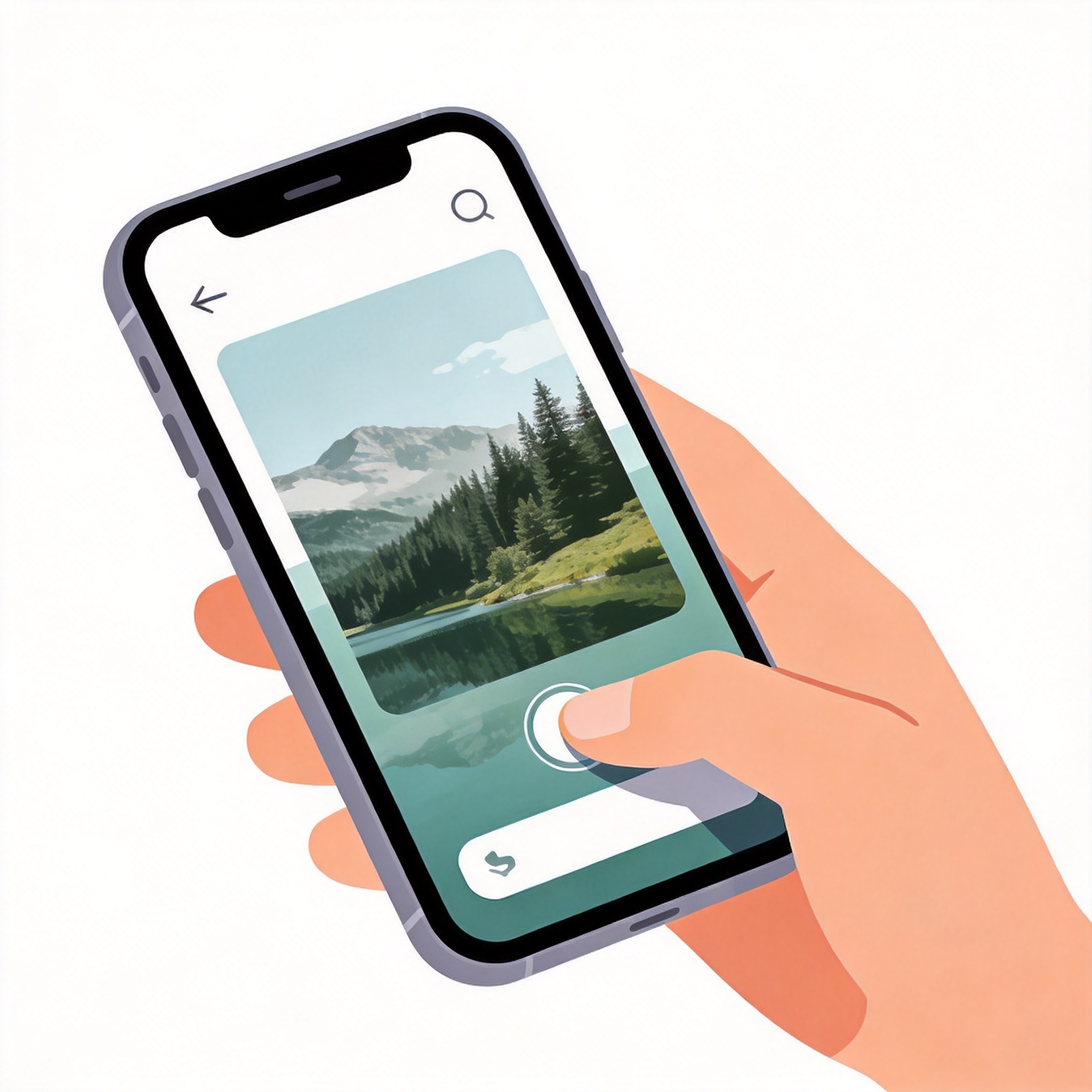
Open Settings
Tap the Settings app on your iPad home screen.
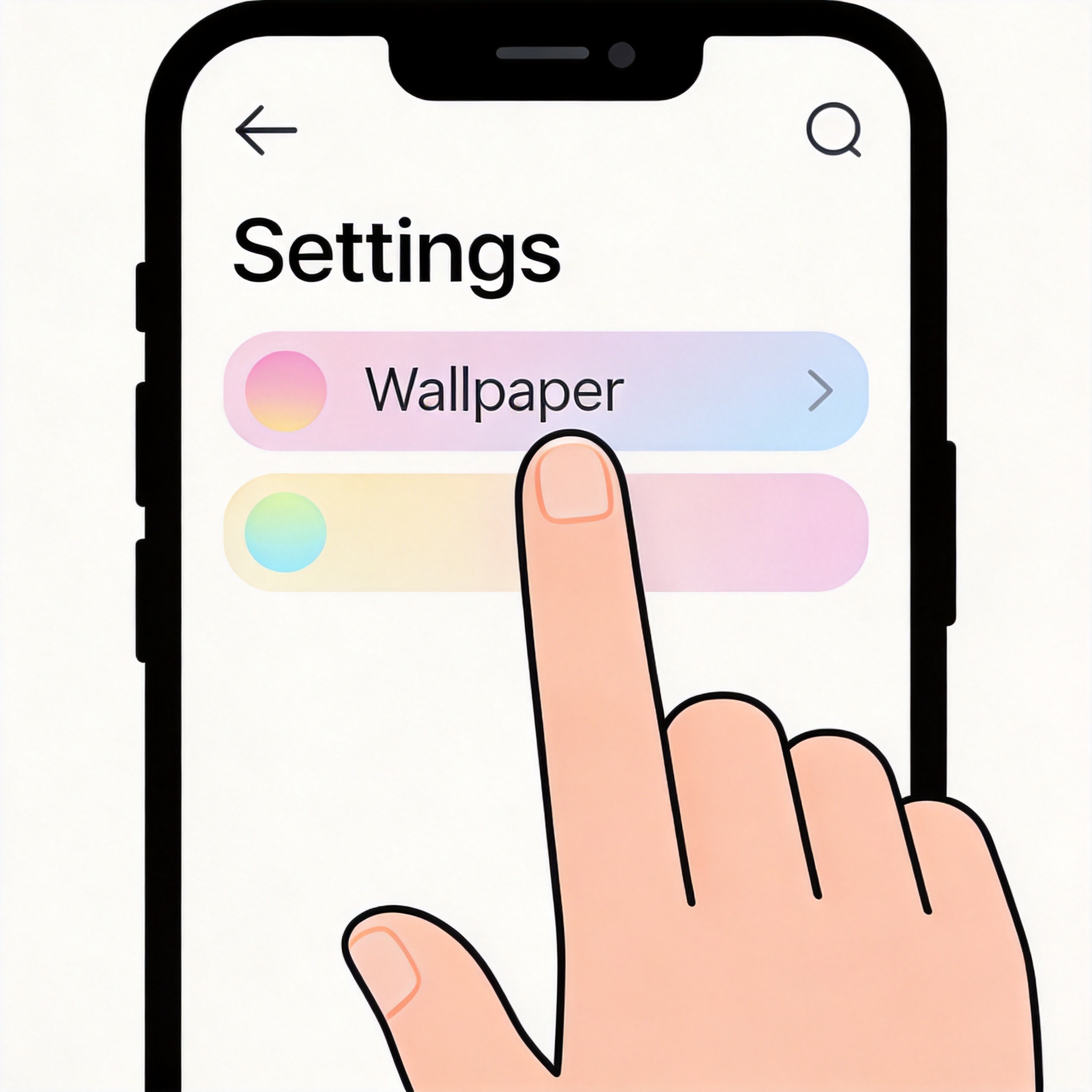
Navigate to Wallpaper
Scroll down and tap "Wallpaper" in the Settings menu.
Choose Your Photo
Tap "Add New Wallpaper" and select your saved image from Photos.
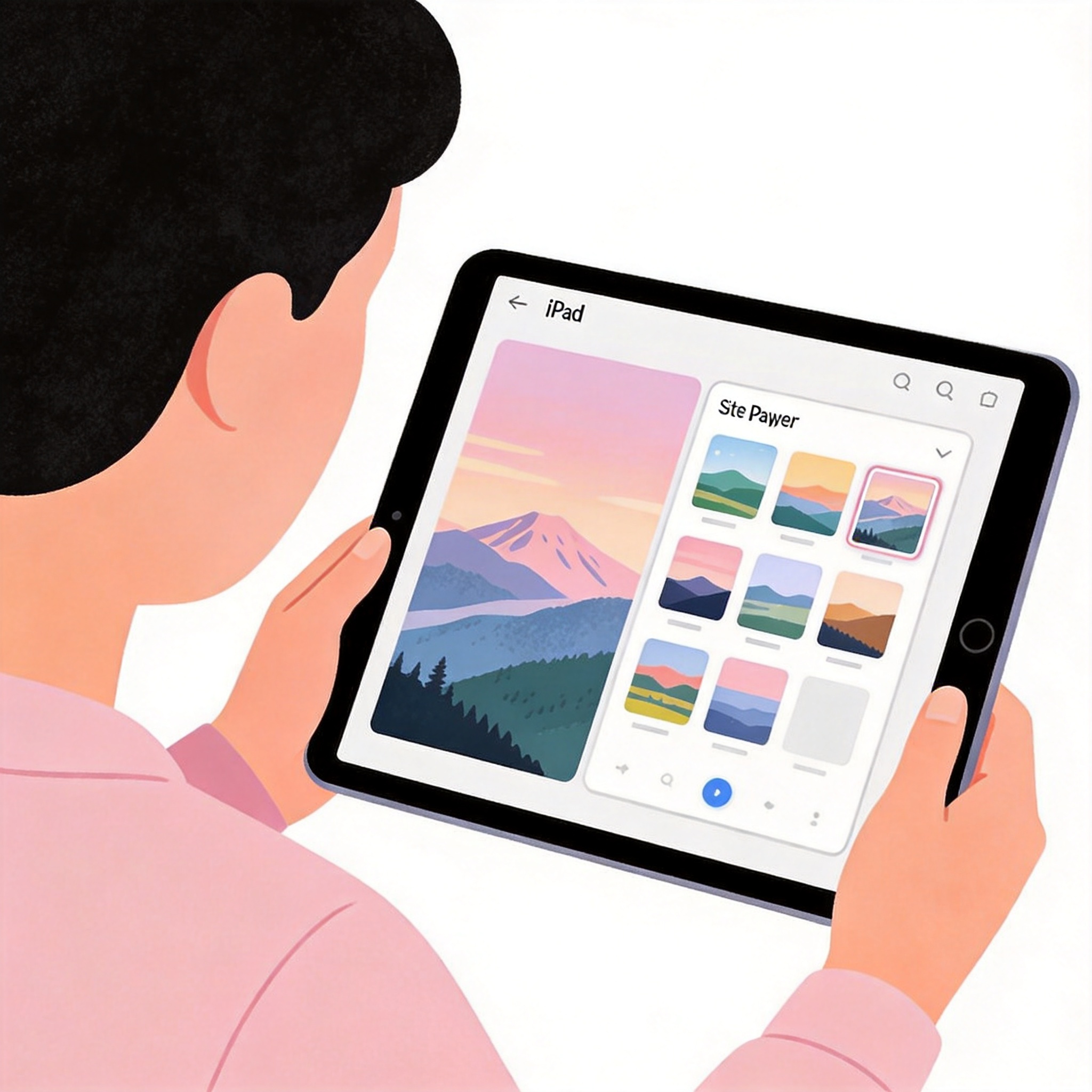
Select Screens and Set
Choose to apply to "Lock Screen", "Home Screen", or both. Tap "Add" to confirm.
Android Tablet
Steps may vary slightly depending on your device manufacturer.
Download the Wallpaper
Long-press on the wallpaper and select "Set as wallpaper" or download the image first.
Long Press Home Screen
Long-press on an empty area of your home screen to open the customization menu.
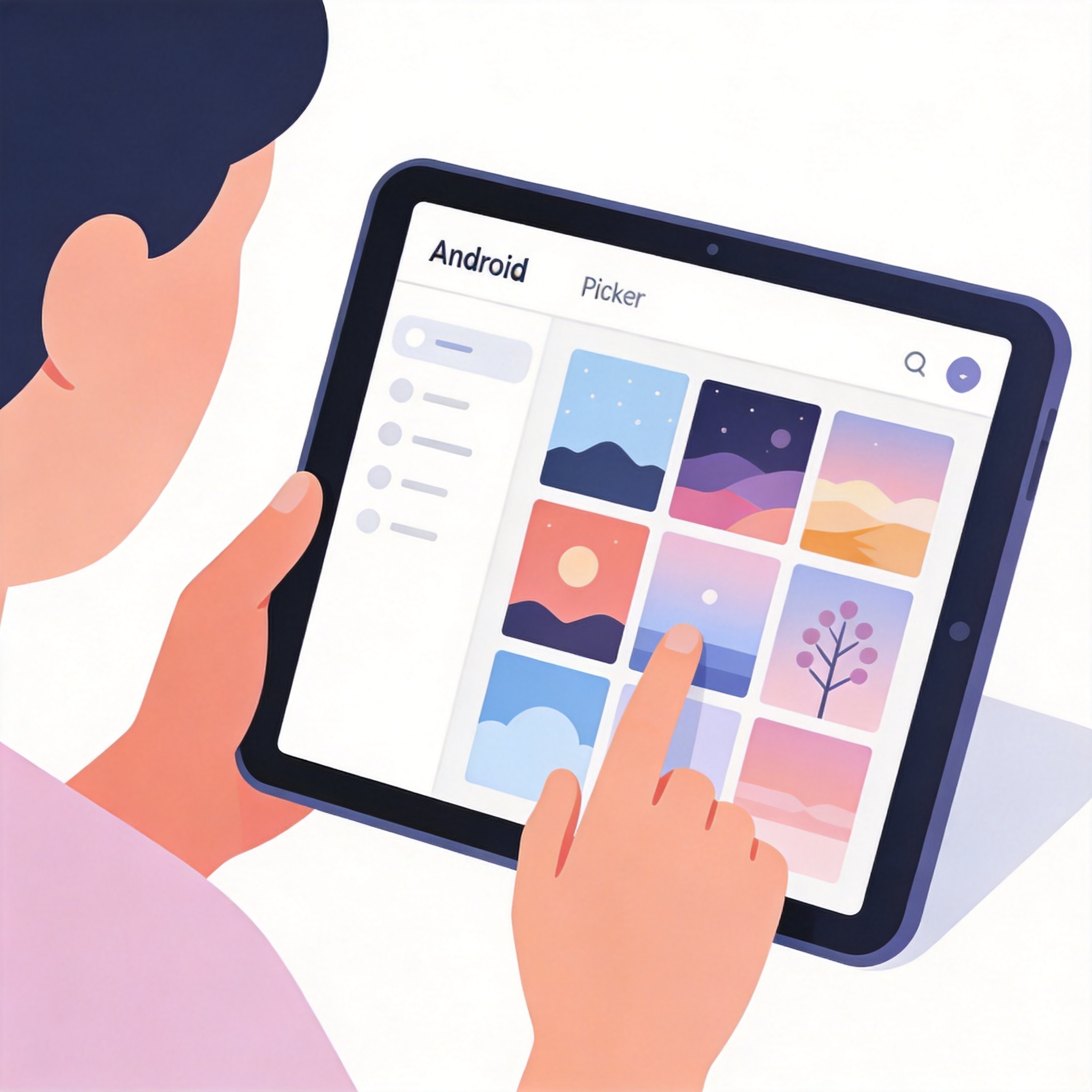
Tap Wallpapers
Look for a "Wallpapers" option, usually a brush or image icon.
Select Your Image
Choose the downloaded wallpaper from your gallery or file manager.
Set and Confirm
Preview how it looks and tap "Set wallpaper" or "Apply".
Tips
Landscape vs Portrait
Tablets can be used in both orientations. Consider your most common usage when choosing wallpapers.
Higher Resolution
Tablets often have high-resolution displays. Use high-quality wallpapers for the best results.
Consider Widgets
Leave some space for widgets and app icons when choosing detailed wallpapers.
Split Wallpapers
Some tablets support different wallpapers for the Lock Screen and Home Screen.